Quoting & EstimationLive
Engineer-grade pricing for 2D DXF and 3D STEP parts in seconds, with client-ready PDF quotes and shareable links.
Instant DXF & STEP quoting, true-shape nesting, production planning and an online AI editor. One system to run your laser, plasma and waterjet cutting business, on any material.
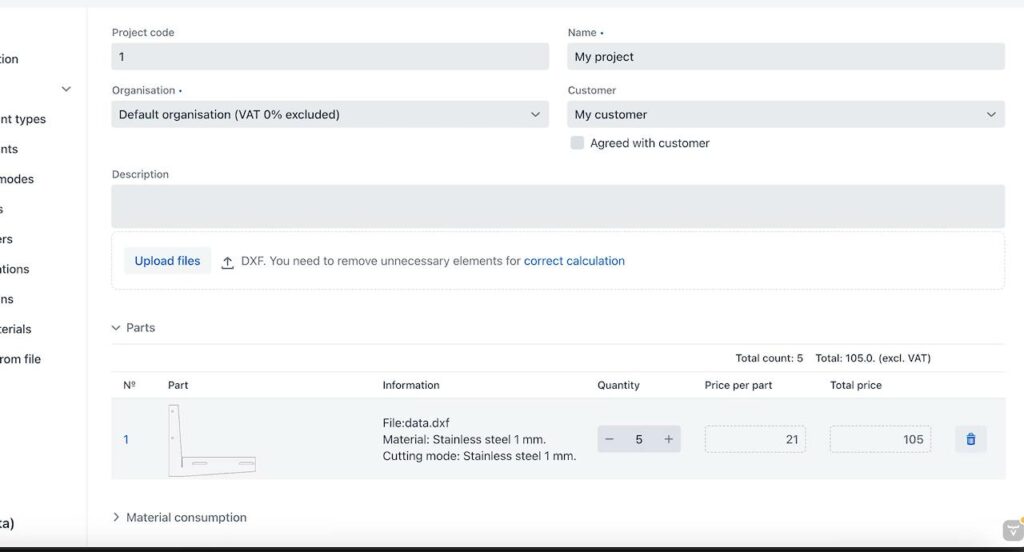
From 2D DXF to full 3D STEP. CUTL is more than a quoting calculator. It's the ERP that runs your fabrication shop, module by module.
Engineer-grade pricing for 2D DXF and 3D STEP parts in seconds, with client-ready PDF quotes and shareable links.
Drag-and-drop DXF and full 3D STEP models. Cloud-based, no install, batch upload, analyze, inspect and quote with no conversions.
Optimize material yield with smart 2D & 3D nesting and export production-ready DXF to CypCut & RDWorks.
Open, clean and fix DXF and STEP-derived geometry right in the browser. AI-assisted, no CAD seat.
Plan, schedule and track shop-floor jobs from quote to delivery, including bending, painting and milling.
Quote and assist across WhatsApp, Telegram and an embeddable site widget, from DXF or STEP, under your brand.
Track material stock, sheets and inventory levels in real time.
Catalogue offcuts and reuse them automatically in 3D-aware nesting.
Orders, invoices and approvals, plus API & ERP/CRM integration to connect it all.
Create your account in under a minute. Upload DXF or STEP/STP files via drag-and-drop, no software installation required.
02Instantly analyze your CAD files with automatic geometry detection. Configure materials, thickness, quantities, cutting technology, and additional operations.
03Automatically optimize to reduce material waste and production time. Generate accurate, transparent cost estimates in seconds, ready to share.
04Collaborate with your team and customers in real time. Export data, share quotes, and integrate CUTL with your existing ERP, CRM, or production workflow.
Every module shares one source of truth. No spreadsheets. No switching tools.
No subscription, no recurring billing. Buy coins and spend them on calculations anytime. 1 calculation = 100 coins.
CUTL is the manufacturing ERP for laser, plasma and waterjet shops, from 5 to 30 people. It started as the most accurate sheet-metal quoting engine in the industry.
Today it runs your DXF and STEP intake, nesting, production schedule and an online AI editor, and it's growing into warehouse, remnant management and document workflow. One login. One source of truth. No spreadsheets, no disconnected tools. And when you have a question, just ask, the built-in AI knows your shop.
Get started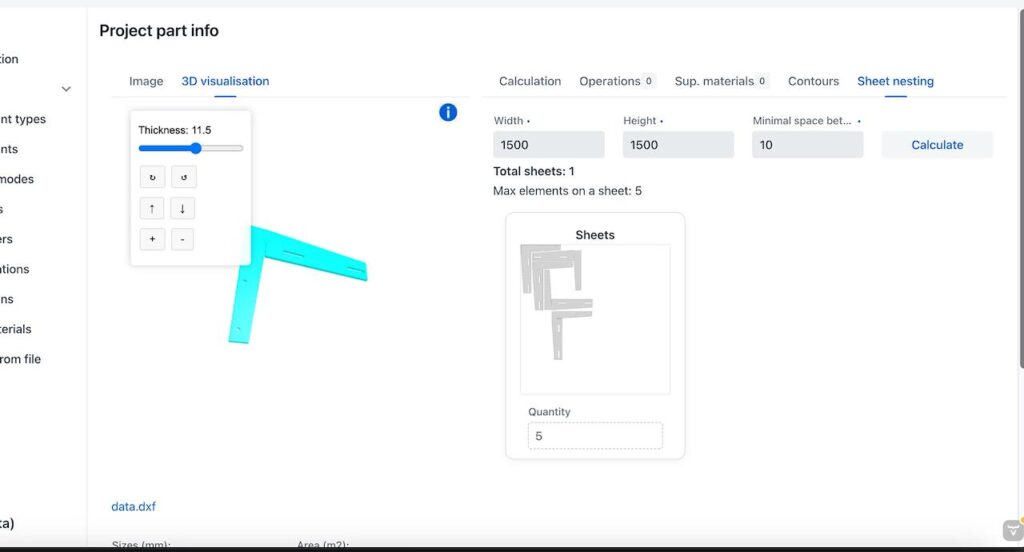
CUTL opens full 3D STEP models right in the browser, then lets you invite your customer in to look at the same part with you. Rotate, zoom, pin comments and talk through the assembly together, live. No CAD seats, no exported screenshots, no endless email threads. When everyone agrees, push it straight to quoting.
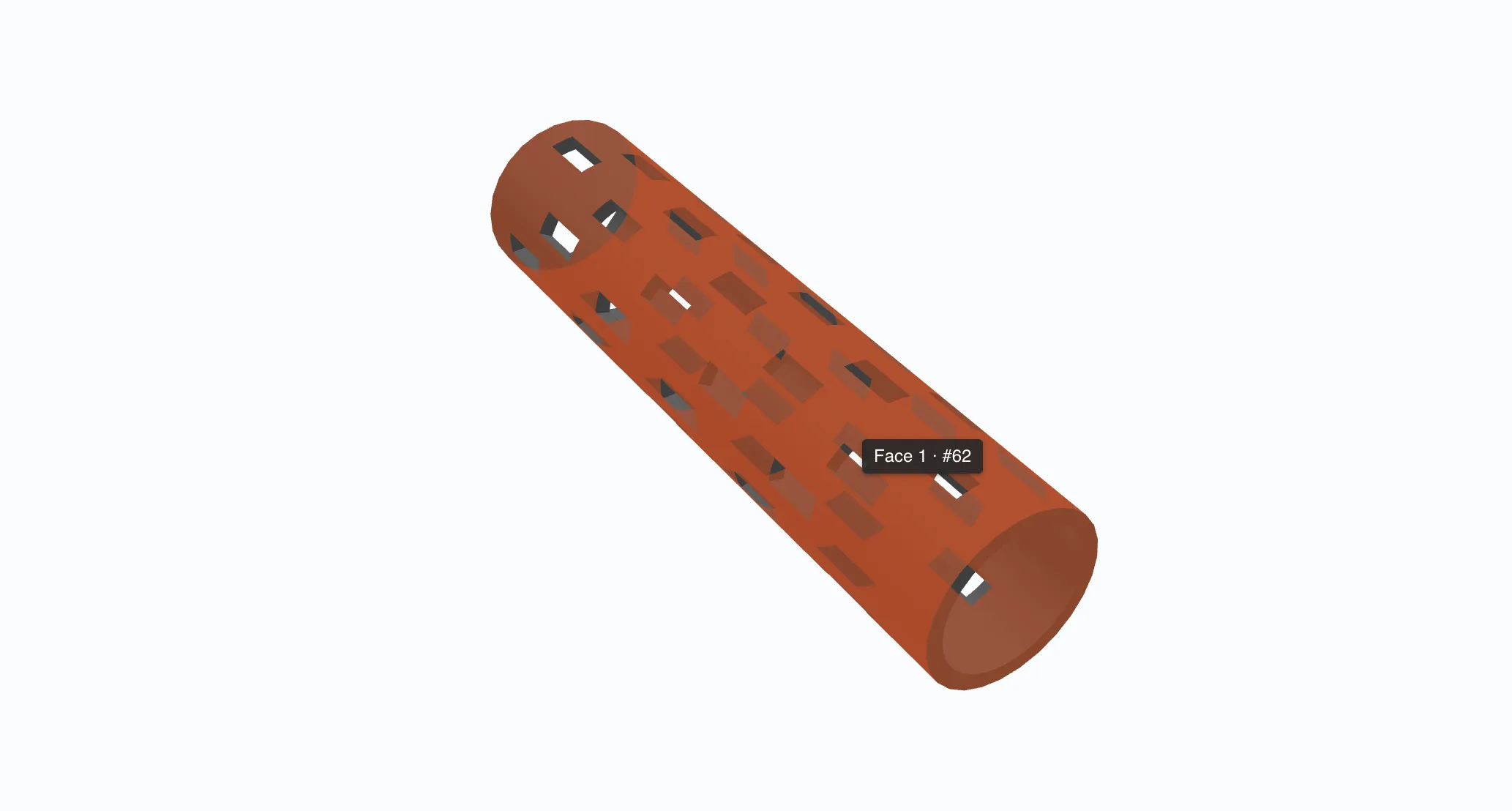
An assistant built right into the STEP viewer turns a 3D assembly into a finished document. It breaks the model into parts, reads everything the file already knows, and asks only what is missing, then builds a parts list and a page per part as a PDF or editable DOCX, in your company template.
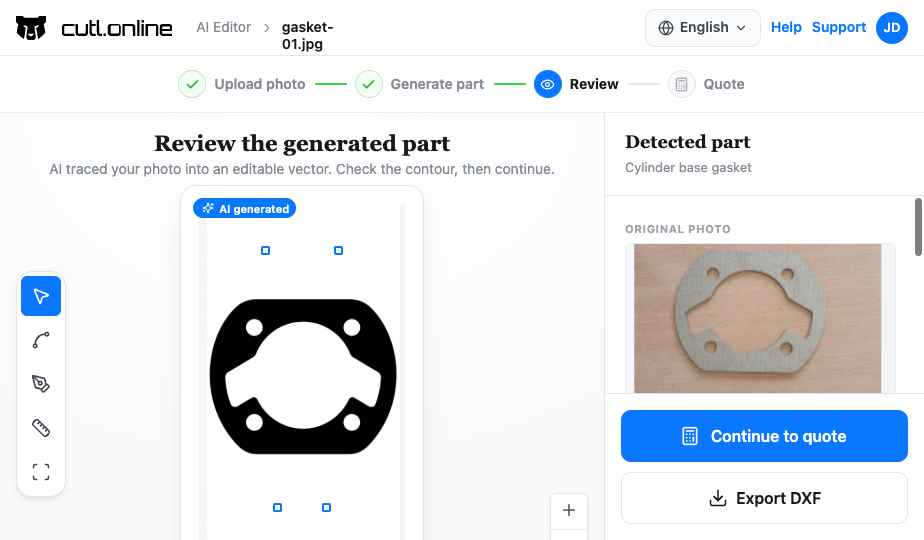
No more bouncing files back to CAD. Open any DXF in CUTL's online editor, let the AI clean the geometry, tweak it by hand if you want, and re-price instantly, then push it straight into nesting and production.
Everything CUTL does in the browser, it does over a REST API. Wire quoting, geometry extraction and true-shape nesting straight into your website, ERP or internal tools, and let webhooks keep both sides in sync.
POST /v1/calculations
Authorization: Bearer sk_live_...

{
  "file": "bracket.step",
  "material": "steel_s235",
  "thickness_mm": 3,
  "technology": "laser",
  "quantity": 50
}

→ 200 OK
{
  "price": 428.50,
  "currency": "EUR",
  "cut_time_s": 92,
  "pierces": 24,
  "nesting_yield": 0.86
}
Print scannable labels straight from a job, QR codes, barcodes and a part thumbnail, so nothing gets mixed up on the shop floor.
Part thumbnail, QR, job number and cut specs, follows the part through the shop.
Big scannable code with a linear barcode fallback, for fast picking and dispatch.
Dark bin label for stock and offcuts, QR and barcode link straight to the remnant record.
Not generic chatbots, each agent connects directly to your shop data, operates on your pricing rules, and runs in the channels your team already uses.
Preliminary quotes from photos or DXF files, right in chat.
WhatsApp, TelegramAnswers setup, workflow, and pricing questions in plain language.
Inside CUTL (every screen)Lets your customers request quotes via messenger or a widget on your site, under your brand.
WhatsApp, Telegram, site widgetAll agents share one backend. CUTL's calculation engine. Every price they return is computed from your real machine rates, material costs, and markup. No approximations. No separate AI pricing models.
Our community and support team continuously update the questions and answers.

Our community and support team are here to help you set up your shop, materials, and pricing rules.