Documentation

CUTL.online — User Guide

For customers of CUTL.online, compiled from official articles, November 2025

Getting Started

CUTL.online is a cloud platform that helps you instantly calculate and manage the cost of laser-, plasma-, waterjet-, or EDM-cut parts. Instead of waiting days for manual quotes, you can upload a file and receive a price within minutes.

Why Use CUTL.online

  • Instant cost estimation from DXF or other CAD drawings.
  • Automatic recognition of geometry and cutting parameters.
  • Transparent and consistent pricing for every job.
  • Optional modules for bending, drilling, painting, or welding.

Create Your Account

  1. Visit https://cutl.online.
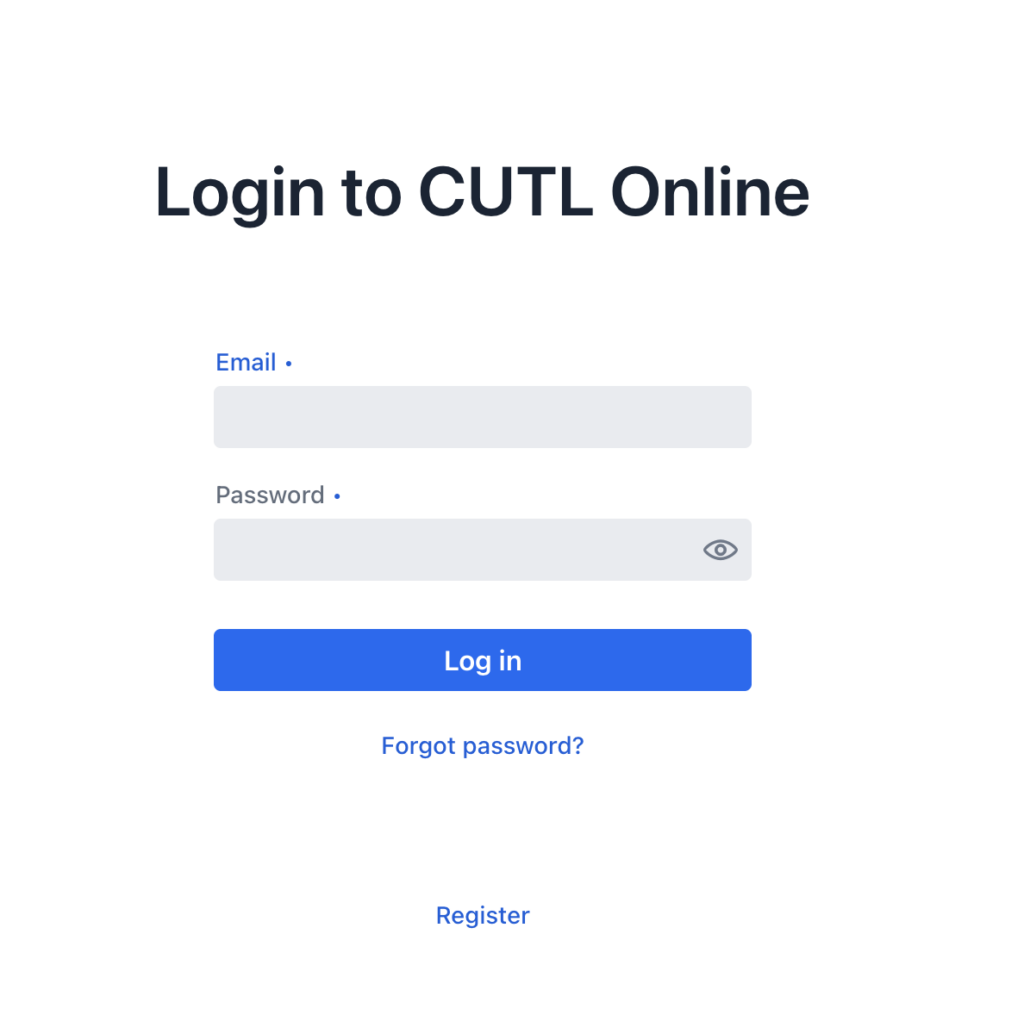
  2. Click Sign Up and enter your email and password.
  3. Confirm your email address. (if you didn’t receive confirmation email, please check spam folder)
  4. If you forgot your password you can always restore it using Forgot password button
💡 Tip: Registration allows you to save your own machines, materials, and cutting modes for future calculations.

User Invitations

Inside each organisation, you can invite other users to collaborate.   Go to UserInvitations and enter their email address. Invited users will: – Receive an email with a secure join link   – Get access to shared projects, machines, and materials within that organisation   – Have permissions depending on their assigned role (e.g., viewer, estimator, manager) > ⚙️ Note: Invitations are organisation-specific — a user invited to one organisation won’t automatically see others unless explicitly added.

Supported File Formats

CUTL accepts DXF and IGES (under construction) files — standard formats used in most design programs.

Setup Wizard

Before you start quoting, you need to define basic workshop data — such as machines, materials, and cutting modes. The Setup Wizard helps you configure this in minutes, even if you’re new to the system. It can:
  • Automatically generate sample machines (e.g., “Laser 2kW”, “Plasma 120A”)
  • Create typical materials with standard prices and thicknesses
  • Add default cutting modes with recommended speeds and costs
  • Adjust default units and coefficients for your region
You can launch the wizard anytime from the Equipment page by clicking Generate. Once completed, your environment will include:
  • At least one machine
  • One or more materials
  • Default cutting modes for each thickness
From this point, the system is ready to calculate real part costs automatically. ⚙️ Example: Run the wizard → Choose “Laser Cutting” → Confirm → You’re ready to upload and calculate your first part!

Organisation and Tax Configuration

CUTL.online supports multi-organisation environments, allowing you to manage several legal entities or production branches under one account.

Multiple Organisations

  • Each organisation can have its own name, address, contact details.
  • Users are able to choose organisations when creating projects.

Tax Configuration

  • Each organisation may define its own VAT rate.
  • The tax rate is automatically applied to all generated quotes and commercial offers.
  • You can configure the default tax display mode (inclusive or exclusive).
💡 Tip: Use this feature if you operate in multiple countries or need to issue invoices under different legal entities.

Preparing DXF Files (Important)

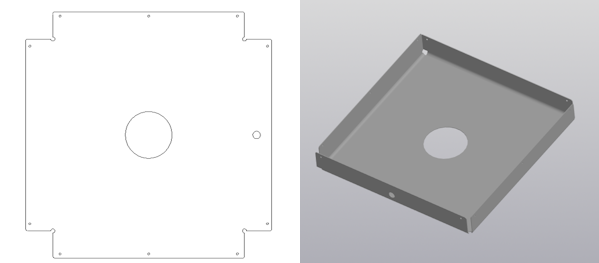
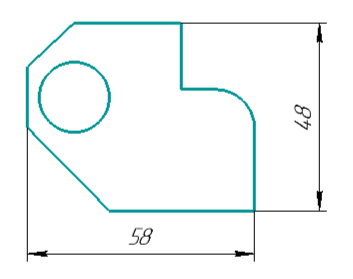
The DXF file format is a universal CAD standard that can store both 2D drawings and 3D objects. This makes it ideal for transferring designs and models between different software tools. In the context of CUTL.online, every line in your DXF drawing is treated as a cutting path. To ensure your quote is calculated correctly, it’s not enough to just “Save As DXF” — you need to clean the drawing first. Remove everything that is not part of the actual part geometry:
  • The title frame (drawing borders)
  • Dimension lines
  • Text or annotations, unless they must be engraved
  • construction lines
  • Any 3D view or projection references — if the drawing is derived from a 3D model, break the link and remove service elements
💡 Tip: Think of the DXF as the exact cutting path your machine will follow. Only the part’s contours and holes should remain. DXF Version Recommendation The DXF standard has evolved over many years, adding new objects and features. If your CAD program allows selecting a file version, choose AutoCAD 2012 (DXF 2010) or earlier. Newer versions are also supported, but very complex, multi-layered files may not always be read correctly. Since CUTL treats all visible lines as cutting paths, such files will produce inaccurate results. A correct DXF contains only the part’s geometry — no borders, no dimensions, no text. This ensures precise cutting length and accurate pricing. ⚠️ Warning: Always verify your file before uploading — unnecessary lines will be interpreted as extra cutting paths.

Preparing Files

  • Use closed paths and clean layers.
  • Remove duplicates or overlapping lines.
  • Each part should be drawn in real-world units (mm or inches).

Uploading Files

Once logged in, you can begin creating your first quote.

Step-by-Step

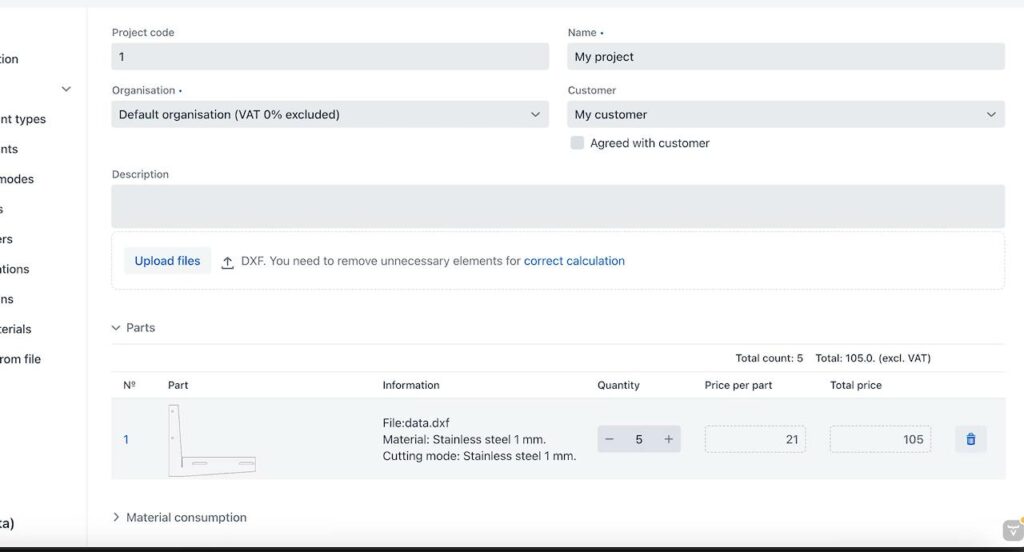
  1. Click New Project.
  2. Enter a project name and optional customer details.
  3. Upload one or more files (DXF, IGES).
  4. Wait for processing — each file is automatically analyzed.
  5. Open the Parts tab to see every detected component.
⚠️ Warning: Avoid uploading raster images (JPG, PNG, PDF). CUTL needs vector files to calculate accurate lengths and contours. 

Creating a Quote

CUTL automatically calculates the cost of each part using three parameters:
  • Material area
  • Cutting length
  • Number of piercings
The system applies your machine rates and material prices to produce an accurate quote.

Quick Calculation

If you just want a single estimate:
  1. Go to Quick Calculation.
  2. Upload your DXF drawing.
  3. Select Material and Cutting Mode.
  4. Instantly view your price.
You can fine-tune:
  • Area coefficient – increase if parts require extra material.
  • Complexity coefficient – increase if cutting is more difficult than usual or multiple cuts are required.
Both adjustments immediately update the result. 💡 Tip: Once default cutting modes are linked to materials, cost estimation becomes a two-click process — upload and select material.

Analyzing Geometry

After each file upload, CUTL automatically detects:
  • Bounding area and outline size.
  • Total cutting length.
  • Number of piercings or contours.
  • Closed areas for engraving or marking.
You can review results in the Contour Table:
  • Each contour’s length, type, and closure status.
  • Selected contours are highlighted on the preview.
  • Disable specific holes or shapes to exclude them from cutting.
⚠️ Warning: Overlapping or open paths may lead to inaccurate lengths or pricing. Manual adjustments are also possible — you can override material prices or assign alternative cutting modes.

Nesting and Materials

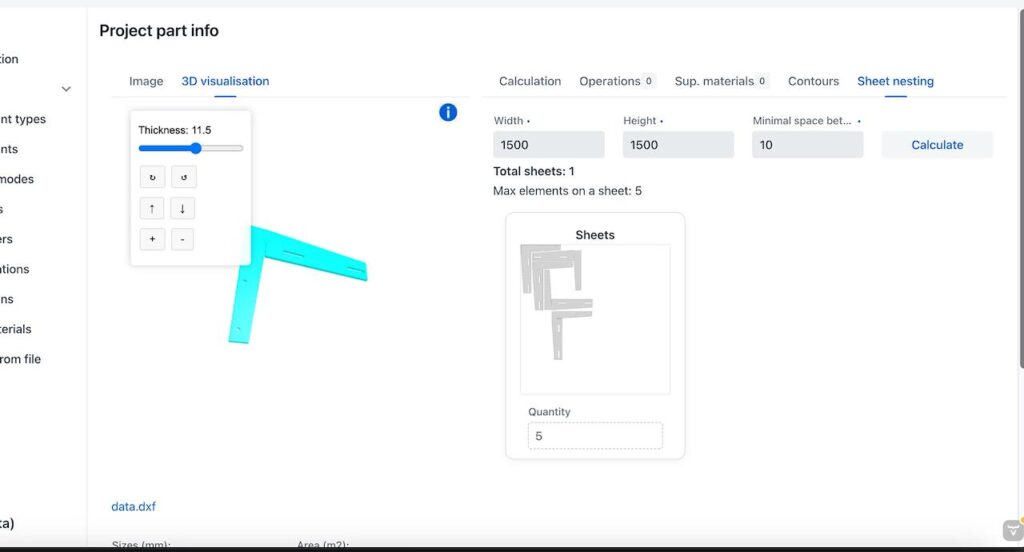
CUTL optimizes your material usage through automatic nesting — arranging parts to minimize waste and sheet usage. 💡 Tip: You can export nesting layouts and material usage reports for production planning.

Projects and Operations

Advanced Configuration

  • Operations and Supplementary Materials are configured within each project. You can assign different manufacturing steps (e.g., cutting, bending, coating) and include additional materials such as fasteners or paint.
  • Custom Lines can be set up as additional operations. For example, a dashed or dotted line in a DXF file can be interpreted as a bending or engraving path, allowing the system to automatically distinguish between cutting and marking operations.
Inside a project, each part can include:
  • Cutting (default operation)
  • Bending, drilling, painting, welding, polishing, packing, and more.
To include an operation:
  1. Open the part.
  2. Go to the Operations tab.
  3. Add the desired operation and specify parameters (e.g., number of bends).
  4. Save the part to update its total price.
Additional materials (fasteners, plugs, coatings, etc.) can be managed through Dictionaries → Supplementary Materials and added per part.

Generating Results

  • PDF Report — includes part breakdowns, total cost, and material usage.
  • Commercial Offer PDF — formatted quote with your company details.
  • Public Link — share results for customer review without revealing internal data.
💡 Tip: Enable “Send copy to me” when emailing offers to keep a record in your inbox.

AI Reviewer

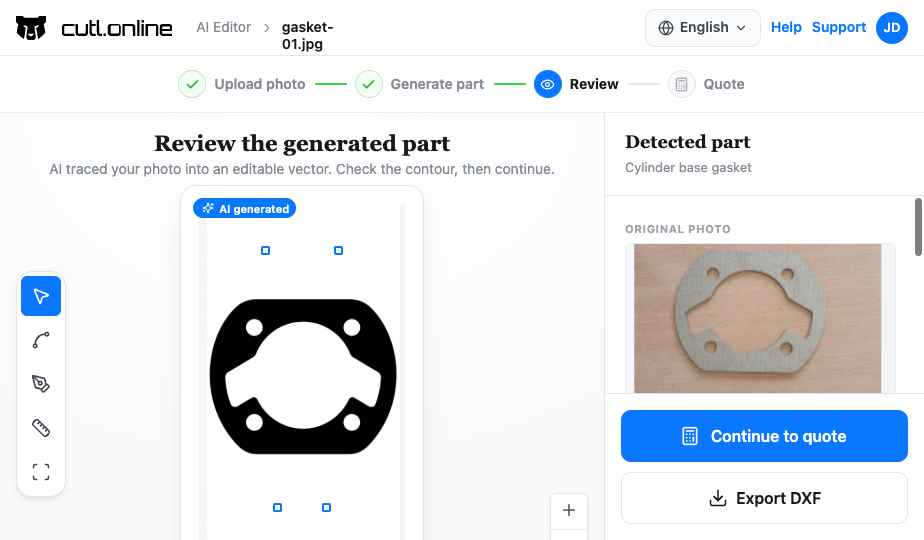
The AI Reviewer automatically checks your uploaded DXF or SVG drawings and highlights potential issues before you generate a quote. It helps you detect and fix problems that could affect accuracy or cutting quality. Typical checks include:
  • Open or overlapping paths
  • Duplicate contours
  • Incorrect scaling or unit mismatches
  • Too small internal holes
  • Missing closed loops (non-continuous shapes)
After review, you’ll see a summary with warnings and suggestions on how to fix them directly in your CAD file. 💡 Tip: The AI Reviewer doesn’t modify your file — it simply guides you toward an optimal drawing for accurate results.

Embedding the Widget

CUTL offers an embeddable widget for your website — allowing customers to upload parts and receive instant quotes directly. You can embed it as:
  • An iframe
  • A button
  • Or a direct link
Example: <iframe   src=”https://cutl.online/widget”   width=”400″   height=”600″   frameborder=”0″> </iframe> 💡 Tip: The widget integrates seamlessly into any website or CMS and inherits your color theme automatically.

API Integration

Each user can generate an API access token for external integrations with the CUTL.online platform.   This token allows you to connect your own system to the CUTL API for automated quoting, material sync, or project management. To request API access:
  1. Contact our team at  info@cutl.online
  2. Once approved, you’ll receive access to generate and manage your personal token in **User → Integration**.  
  3. Use this token in your API requests as an authentication header

How to Prepare a DXF File for Calculation

The DXF file format is a universal format that can store both 2D drawings and 3D objects. This makes it suitable for transferring drawings and 3D models between different programs.

In our case, the CUTL service calculates the cutting cost of parts — meaning that any lines in the drawing are interpreted as cutting paths. Therefore, to obtain an accurate calculation result, you should not simply save your drawing as a DXF file “as is.” Instead, you need to remove all elements that are not part of the actual part, such as:

  • Dimension lines

  • Text labels, unless they are part of the design itself

  • Construction or auxiliary lines

  • If the drawing was generated as a view from a 3D model, it is recommended to break the link with the model and remove any service or reference elements.

Additionally, keep in mind that the DXF format has evolved over many years — new objects and features have been added. Therefore, if your software allows you to select a DXF version, it’s best to choose AutoCAD 2012 (DXF version 2010) or earlier. Newer versions can also be processed by our service, but complex multi-layer drawings may be read incorrectly.

FAQ and Support

Common Questions

  1. Why is my quote taking longer than usual? Large or complex DXF files take extra time to analyze, especially with many contours. If calculation takes longer than 5 minutes you will receive an email as soon as calculation is completed.
  1. My file shows a geometry error — what does it mean? It usually means open or overlapping paths. Clean your drawing in CAD and re-upload.
  1. Can I add custom materials or operations? Yes. Go to Dictionaries → Materials or Dictionaries → Operations.
  1. Do I need special software to use CUTL? No — everything runs in your browser. No plugins or installations required.
  1. How can I share a quote with a customer? Use the Share Link or export a Commercial Offer PDF.
  1. Is my data secure? Yes. All projects are stored in secure cloud infrastructure with encrypted connections.

Need Help?

For assistance, contact us at info@cutl.online 💬 We’re here to help you quote faster, work smarter, and cut with confidence.

Cookies consent

We use cookies and similar technologies to ensure the website works properly, analyze usage, and improve our services. You can accept all cookies or manage your preferences. Essential cookies are always enabled.

By clicking “Accept”, you agree to the use of cookies as described.